The MacBook Neo: 10 Must-Have Accessories to Turn Apple’s Budget Laptop into a Student Powerhouse
You’ve bought the MacBook Neo. Now what? Apple’s £499 education-priced laptop is a fantastic machine for students. It’s lightweight, colourful, silent (no fan!), and powered by the surprisingly capable A18 Pro chip. But let’s be honest: Apple made some compromises to hit that price point.
The Neo lacks a backlit keyboard. The ports are limited (one fast USB-C, one slow USB-C). There’s no power adapter in the box. And with just 8GB of RAM and a 256GB SSD, you’ll want to expand your capabilities without breaking the bank.
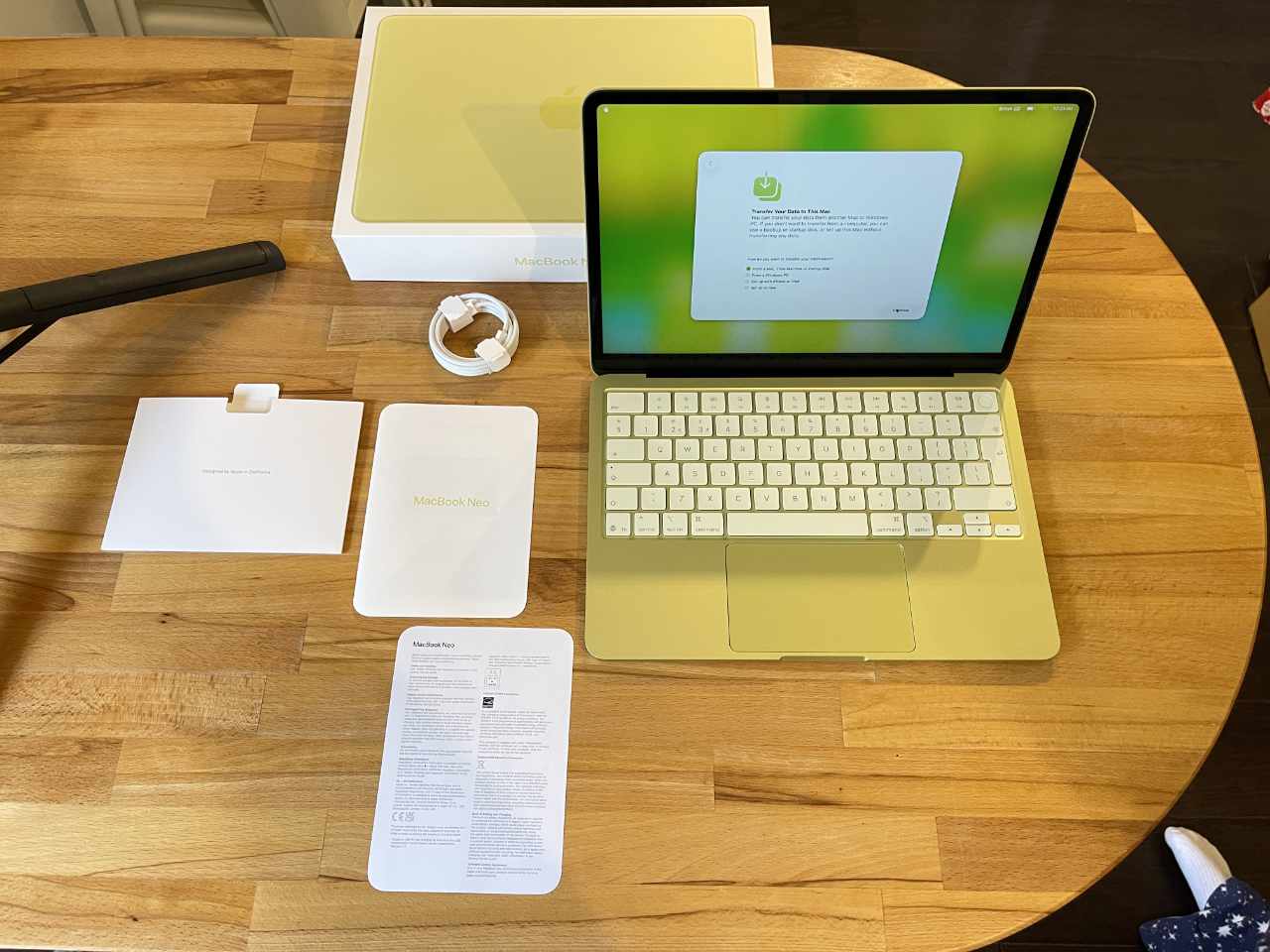
The good news? The right accessories can transform the MacBook Neo from a bare-bones budget laptop into a genuine student productivity machine whether you’re studying in a library, working from a dorm desk, or building a portable workstation for life between home and campus.
Here are the 10 must-have accessories every MacBook Neo-owning student should consider, organised by how you actually use your laptop.
The Essentials (What Apple Didn’t Include)
1. A Proper Power Adapter (20W Minimum, But Go Bigger)
Apple doesn’t include a power adapter with the MacBook Neo. You get a USB-C charge cable and nothing else. To charge your new laptop, you need to supply your own USB-C Power Delivery (PD) adapter.
The minimum requirement: A 20W USB-C PD adapter will charge the Neo, but slowly especially if you’re using the laptop while charging.
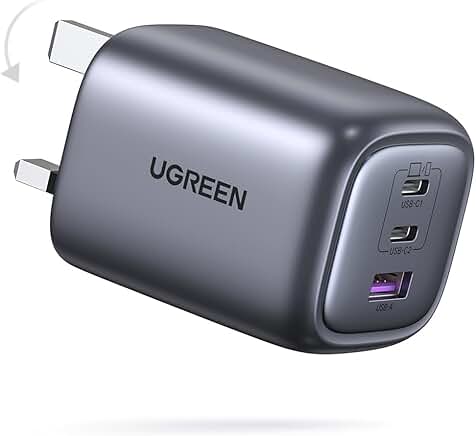
The smarter choice: Invest in a higher-wattage adapter (45W–65W). The MacBook Neo can accept up to 60W of charging power, which means faster top-ups between lectures. A 45W or 65W adapter will charge the Neo significantly faster than the bare-minimum 20W, and it can also charge your iPhone, iPad, or other USB-C devices.

What to look for:
- USB-C Power Delivery (PD) support
- 45W–65W output for fast charging
- Compact, foldable plug design for portability
- Additional USB-A or USB-C ports for charging multiple devices
Top pick for students: A compact 65W GaN (Gallium Nitride) charger with two USB-C ports. It’s small enough to slip into a pencil case but powerful enough to fast-charge your Neo and an iPad simultaneously.
Why it’s essential: Without it, your Neo is a paperweight after 11–16 hours. This is non-negotiable.
Protection (Because Students Are Hard on Gear)
2. Hard Shell Case (Acrylic Bumper)
The MacBook Neo’s aluminium body looks beautiful—especially in fun colours like Citrus and Blush but it scratches easily. Backpacks get jostled, library desks get crowded, and accidents happen.
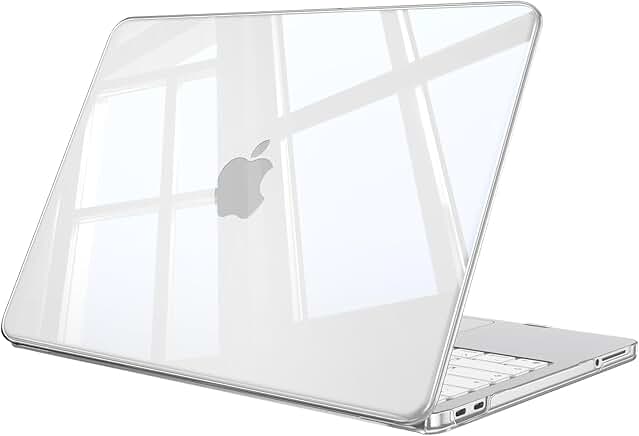
The solution: A clear, hard acrylic snap-on case protects your Neo from scratches, scuffs, and minor impacts without hiding that gorgeous Citrus (or Silver, Blush, or Indigo) finish.
What to look for:
- Clear, hard polycarbonate/acrylic material
- Snaps on securely without adding bulk
- Vented for passive cooling (important for the fanless Neo)
- Rubber feet to keep the Neo stable on slippery desks
Why students love it: You can personalise the case with stickers (without damaging the aluminium underneath), and when you sell the Neo after graduation, it still looks brand new.
3. Laptop Sleeve or Pouch
Even with a hard shell case, your Neo needs protection inside your backpack. Keys, pens, and other items can scratch or dent the laptop.
The solution: A padded laptop sleeve or neoprene pouch sized specifically for a 13-inch laptop.
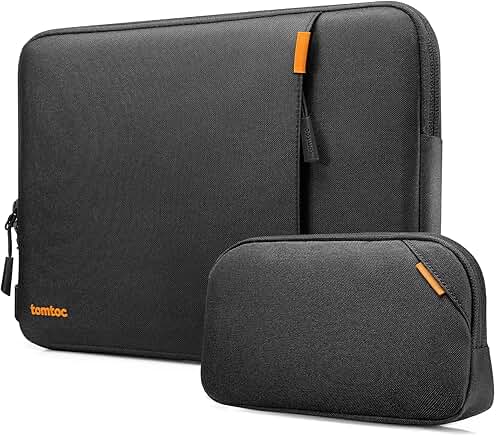
What to look for:
- Fits the 13-inch MacBook Neo snugly
- Padded interior (3–5mm thickness minimum)
- Water-resistant exterior
- Extra pocket for charger, dongle, and stylus
Top pick for students: A slim neoprene sleeve with a zippered front pocket for your iPhone, small foldaway power adapter, portable SSD storage and USB-C hub. It keeps everything together and slides easily into any backpack.
Why it’s essential: A sleeve costs less than £20 but can save you from a cracked screen or dented chassis. It’s the cheapest insurance you’ll ever buy.
Productivity Boosters (Dorm Desk Edition)
4. USB-C Hub with Power Delivery (PD) Pass-Through
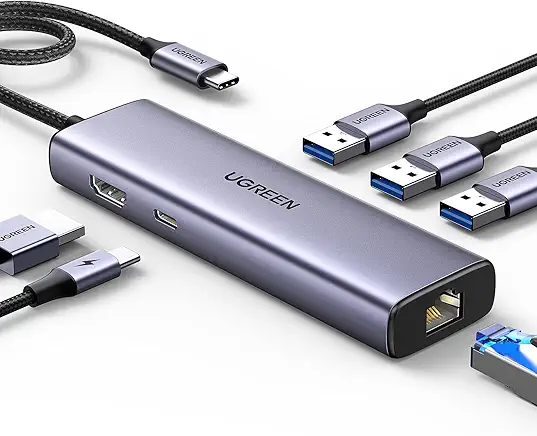
The MacBook Neo has two USB-C ports. One is fast (10Gb/s, USB 3). The other is painfully slow (480Mb/s, USB 2). Neither gives you the ports you actually need: HDMI, USB-A for flash drives, SD card readers, or Ethernet.
The solution: A USB-C hub expands your Neo’s connectivity without sacrificing your charging port.
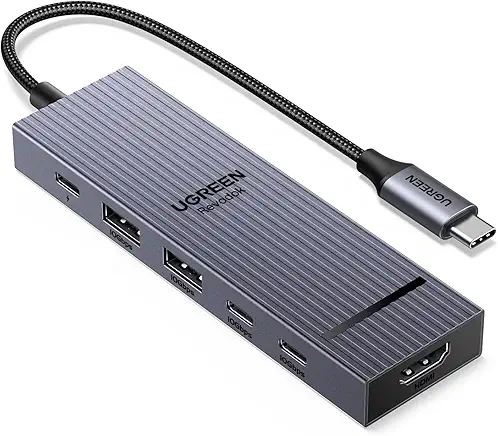
What to look for:
- Power Delivery (PD) pass-through: This lets you charge your Neo through the hub while using other ports. Essential.
- HDMI or DisplayPort: For connecting to external monitors, projectors, or dorm TVs.
- USB-A ports (at least 2): For flash drives, external hard drives, and older peripherals.
- SD/microSD card slot: Crucial for photography students or anyone offloading camera footage.
- Ethernet port (optional): For faster, more stable internet in dorms.
Top pick for students: A compact, bus-powered USB-C hub with PD, HDMI, two USB-A ports, and an SD card slot. Avoid hubs that require an external power supply (defeats the portability).
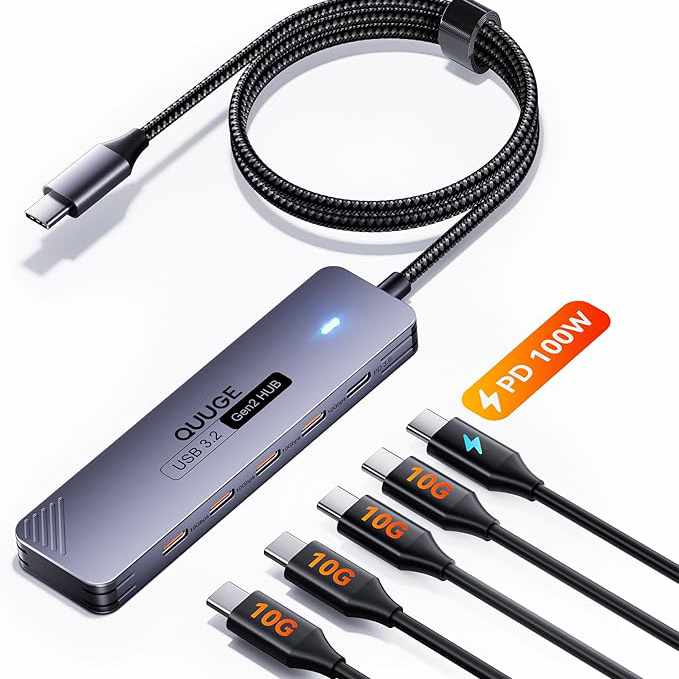
Why it’s essential: Without a hub, you can’t connect a flash drive and charge at the same time (since the fast USB-C port is also your charging port). With a hub, your Neo becomes a proper desktop replacement.
5. External Monitor (Full-Size or Portable)
The Neo’s 13-inch display is beautiful, but try writing an essay with five research tabs open, a PDF, and a messaging app. You’ll quickly crave more screen real estate.
The solution: An external monitor, either a full-size 4K display for your desk or a portable USB-C monitor for dual-screen productivity on the go.
Option A: Full-Size 27-inch 4K Monitor (For Dorm Desks)
A 27-inch 4K monitor transforms the Neo into a proper desktop workstation. You get four to five times the screen area, making multitasking effortless.
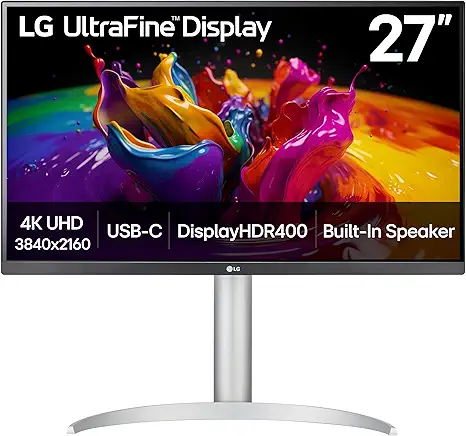
What to look for:
- 27-inch, 4K (3840 x 2160) resolution
- USB-C input with power delivery (charges Neo via single cable)
- 60Hz refresh rate (fine for productivity, not gaming)
- Good colour accuracy (IPS panel)
Why it’s great: You can close the Neo’s lid, use it in clamshell mode with an external keyboard and mouse, and have a clean, spacious desktop setup for long study sessions.
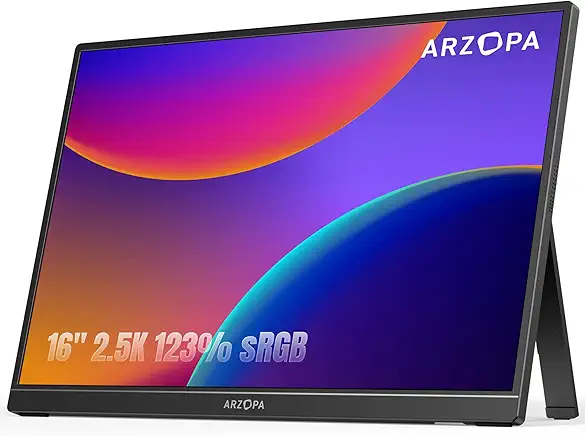
Option B: Portable USB-C Monitor (For Library Warriors)
If you work primarily from libraries or coffee shops, a portable 15.6-inch or 16-inch USB-C monitor gives you dual screens anywhere. It runs off your Neo’s battery (or a separate USB-C power bank) and connects with a single cable.
What to look for:
- 15.6-inch, 1080p or 16-inch, 2.5K resolution (4K is overkill at this size)
- USB-C connection with power and video over one cable
- Slim, lightweight design with a folding cover/stand
- 400+ nits brightness for well-lit environments
Why students love it: Spread your research across two screens in the library. Keep your essay on the Neo and your sources on the portable monitor. It’s a game-changer for productivity. Choosing 2.5K over 4K also keeps the cost down. Portable monitors are coming down in price and are super affordable during sales.
6. MacBook Stand (for Ergonomics)
Hunching over a laptop screen all day is terrible for your neck and posture. Your head weighs about 10–12 pounds, and tilting it forward to look down at a laptop screen puts up to 60 pounds of stress on your cervical spine.
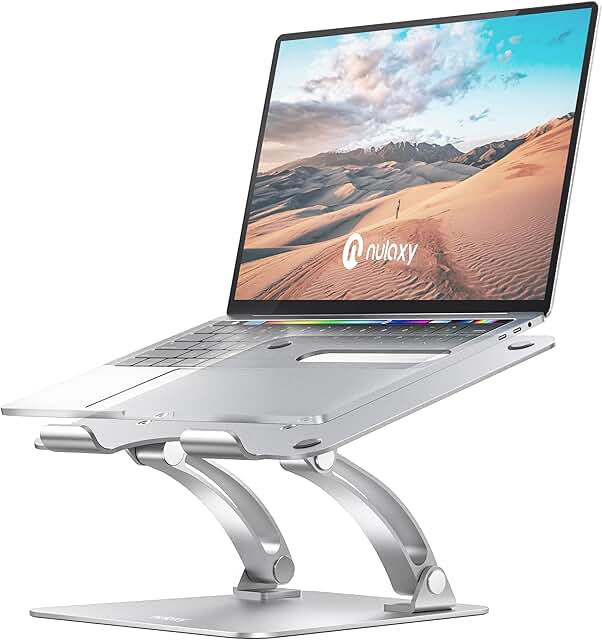
The solution: A simple, foldable laptop stand raises your Neo’s screen to eye level, promoting better posture and reducing neck strain.
What to look for:
- Folds flat for portability
- Aluminium or sturdy plastic construction
- Open design that doesn’t block airflow (critical for the fanless Neo’s passive cooling)
- Silicone grips to prevent slipping
Top pick for students: A compact, collapsible stand that fits in your laptop sleeve alongside the Neo. Use it at your desk, then toss it in your bag for library sessions.
Why it’s essential: You only get one spine. A £20 stand is cheap compared to years of neck pain.
7. External Keyboard and Mouse
The MacBook Neo’s Magic Keyboard is good, but the base model lacks a backlight, a serious annoyance for late-night study sessions. And while the trackpad is excellent, extended hours of editing or design work benefit from a proper mouse.
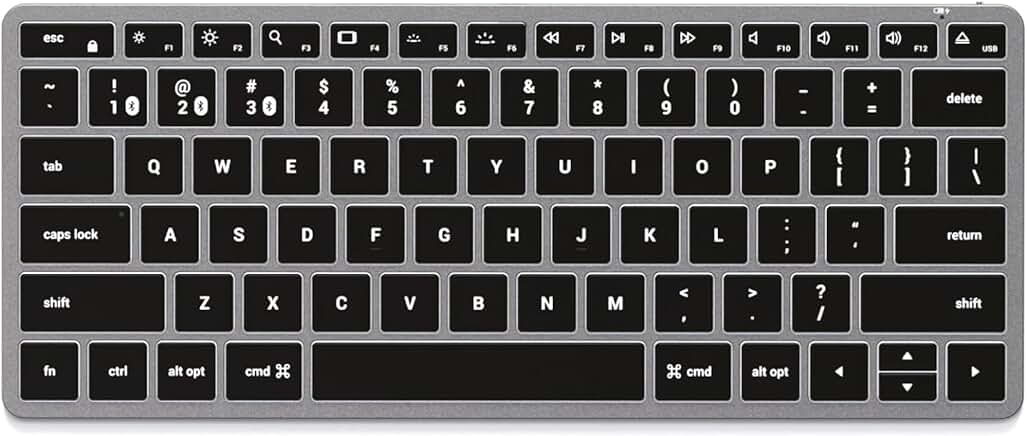
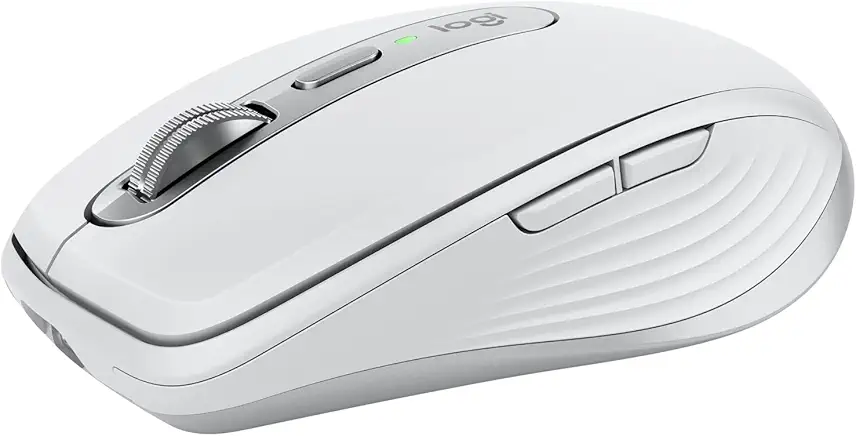
The solution: A Bluetooth keyboard (preferably backlit) and a wireless mouse.
What to look for in a keyboard:
- Backlit keys (essential for the base Neo)
- Bluetooth (no USB dongle required)
- Compact, portable design (or full-size if desk-only)
- macOS key layout (command key in the right place)
A compact Bluetooth keyboard with white backlighting and Mac-specific function keys. It solves the Neo’s missing backlight while giving you a more comfortable typing angle when the Neo is on a stand.
What to look for in a mouse:
- Bluetooth or USB-C (avoid dongles if possible)
- Silent clicks (for library use)
- Long battery life (months, not days)
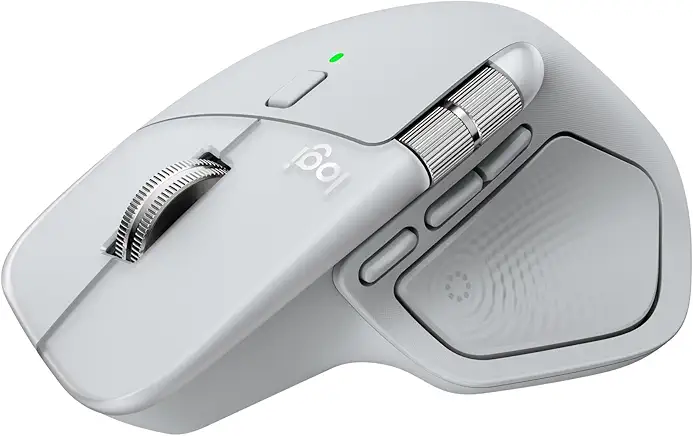
Top mouse picks: Apple Magic Mouse (if you like gestures) or Logitech MX Anywhere 3S (compact, silent clicks, works on glass).
Why it matters: A backlit keyboard solves the Neo’s biggest omission. A proper mouse and ergonomic keyboard make hours of essay writing or data analysis genuinely more comfortable.
Creative & Audio Upgrades
8. External Speakers (Wired or Bluetooth)
The Neo’s dual speakers are fine for system sounds and casual YouTube, but they lack bass and volume for movie nights, music, or video editing.
The solution: A pair of external speakers transforms your Neo into a proper entertainment system.
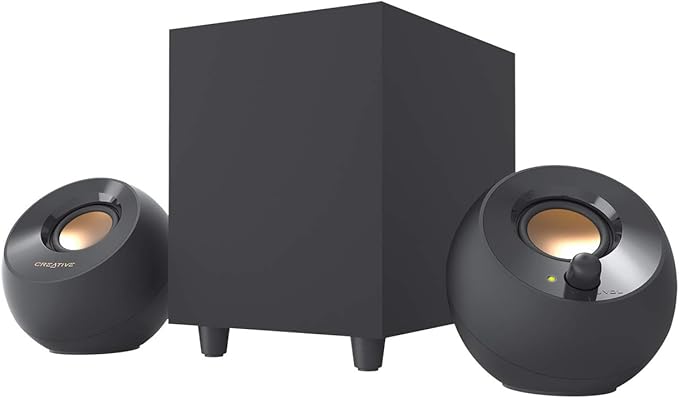
For desk setups: A compact 2.0 or 2.1 speaker system (Creative Pebble, Logitech Z207, or similar) connects via USB-C, USB-A, or Bluetooth.
For portable use: A single Bluetooth speaker (JBL Flip, Ultimate Ears Wonderboom) doubles as both laptop speaker and phone speaker.
What to look for:
- Wired USB-C or AUX connection (no latency for video editing)
- Or Bluetooth with low-latency codec (aptX or AAC)
- Compact size that fits your desk or bag
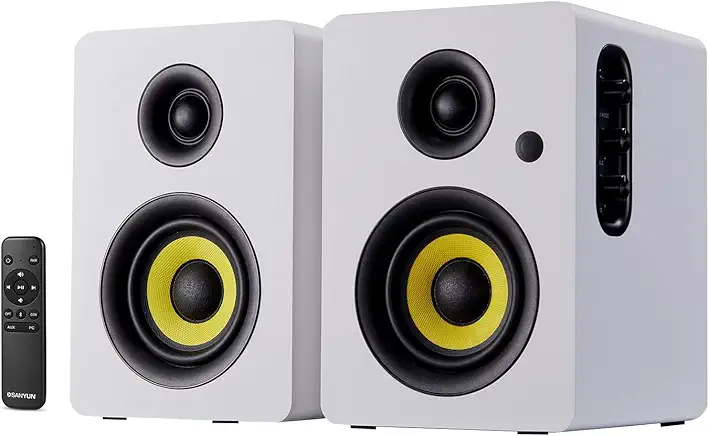
Why students appreciate it: Dorm movie nights, music while studying, or listening to lecture recordings with clearer audio than tinny laptop speakers. Pick up a pair of high power bookshelf speakers for true stereo imaging and dynamic 3D surround sound.
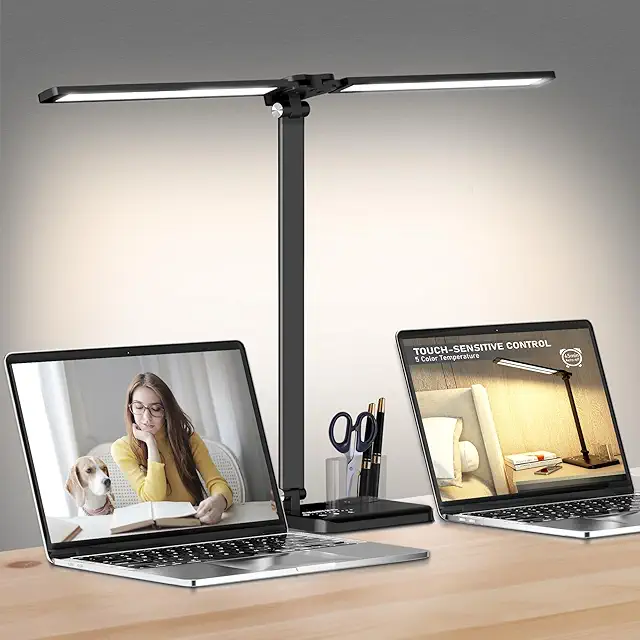
9. Desktop Light Bar
Studying late at night with an overhead light creates glare on your Neo’s screen. A desk lamp takes up valuable space and creates hot spots.
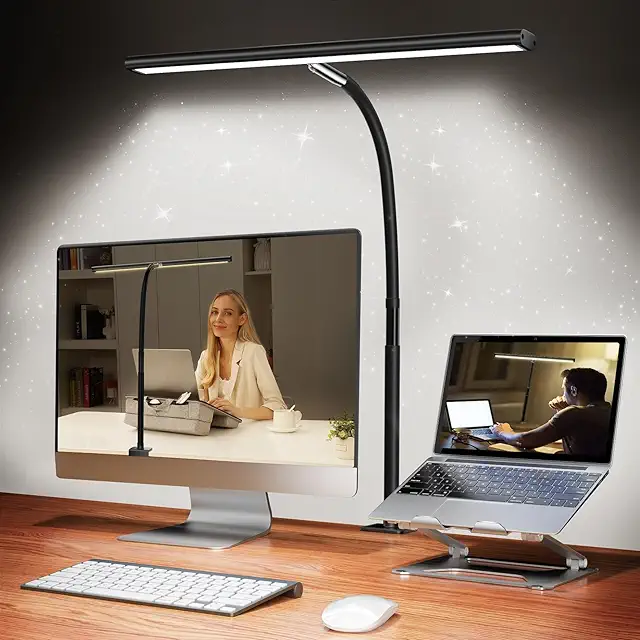
The solution: A monitor light bar that clips onto the top of your external monitor (or even the Neo’s lid) and illuminates your desk without shining light directly on the screen.
What to look for:
- Clips onto monitor/laptop (no desk space required)
- Adjustable colour temperature (warm for evenings, cool for daytime)
- USB-C powered (can plug into your monitor or hub)
- Automatic dimming and ambient light sensor
Why it’s a game-changer: You get perfect task lighting for reading physical textbooks or note-taking, without eye-straining glare on your screen. Plus, it frees up desk space.
The Portable Workstation Setup
10. The Complete “Mobile Office” Kit
For students who want the flexibility of a desktop powerhouse with the portability of a laptop, here’s the ultimate accessory bundle:
The portable workstation kit includes:
- MacBook Neo (obviously)
- 45W–65W GaN charger (replaces Apple’s missing adapter)
- 15.6-inch portable USB-C monitor (extends your screen anywhere)
- Foldable laptop stand (ergonomics on the go)
- Compact Bluetooth keyboard and mouse (or Magic Keyboard if you prefer)
- USB-C hub with PD (so you can connect everything)
Why this setup works: You can work productively from any coffee shop, library, or dorm room. The portable monitor gives you dual screens. The stand protects your neck. The keyboard solves the backlight issue. And everything packs into a single backpack.
Cost breakdown (budget-friendly):
- Portable monitor: £120–£180
- GaN charger: £25–£40
- Foldable stand: £15–£25
- Bluetooth keyboard/mouse combo: £30–£50
- USB-C hub: £25–£40
- Total investment: £215–£335
For an extra £300, you’ve effectively turned your £499 Neo into a portable workstation that rivals setups costing twice as much.
Accessory Shopping Checklist for Students
| Priority | Accessory | Why You Need It | Typical Cost |
| Essential | Power adapter (45W–65W) | Neo doesn’t include one | £19–£40 |
| Essential | Laptop sleeve | Protects Neo in backpack | £15–£30 |
| Highly Recommended | USB-C hub with PD | Adds ports, lets you charge while using accessories | £25–£50 |
| Highly Recommended | External monitor (portable or full-size) | Doubles productivity | £120–£250 |
| Recommended | Hard shell case | Prevents scratches, shows off colour | £20–£35 |
| Recommended | Backlit Bluetooth keyboard | Solves Neo’s missing backlight | £30–£60 |
| Nice to Have | Laptop stand | Saves your neck | £15–£30 |
| Nice to Have | Wireless mouse | Better for long sessions | £20–£50 |
| Nice to Have | External speakers | Better sound for media | £25–£60 |
| Nice to Have | Desktop light bar | Reduces eye strain | £30–£60 |
Spend Smart, Not Big
The MacBook Neo is a budget laptop, and the smartest accessory strategy respects that. You don’t need to buy everything at once. Start with the essentials:
Month 1 (immediate purchases):
- Power adapter (£25)
- Laptop sleeve (£20)
Month 2 (productivity boost):
- USB-C hub (£35)
- Backlit Bluetooth keyboard (£40) — solves the missing backlight
Month 3 (next-level setup):
- Portable monitor (£100 – 150) or full-size monitor if you have a desk
By the end of semester one, your £499 Neo plus £250–£300 of smart accessories will feel like a £1,000+ computing setup.
The MacBook Neo’s compromises are real, but they’re also solvable. With the right accessories, Apple’s most affordable laptop becomes a genuinely capable, comfortable, and productive machine for any student, whether you’re writing essays, editing video, or just trying to survive until graduation.
This article includes recommendations based on the MacBook Neo’s March 2026 specifications. Accessory prices are estimates based on typical UK student budgets and may vary.