Maximum Displays Supported by Apple M5 Systems: M5, M5 Pro & M5 Max
In October 2025, the first devices to feature the M5 chip was out. The MacBook Pro 14, iPad Pro and Apple Vision Pro all benefit from this new 3nm chip. Fast forward to March 2026, the M5 chip saw its way into the popular MacBook Air and M5 Pro and M5 Max into MacBook Pro 14 and 16. But the question we want answer to is how many displays are supported by these systems.
MacBook Air 13 and 15 received the M5 chip upgrade in March 2026 while M5 Pro and M5 Max finally came to MacBook Pro 14 and 16. All that is left now is for Mac mini and iMac. For those planning their next upgrade, this is the best time to make a move. Here is how many displays the M5, M5 Pro and M5 Max systems can support.
How Many External Displays Can Your M5 Mac Support? (2026 Guide for MacBook Air & Pro)
Now supercharged with M5 chips, the MacBook Air 13 and 15, MacBook Pro 14 and 16 comes with three Thunderbolt 4 or 5 ports, an HDMI port and a MagSafe 3 port. There is also an SDXC card slot and a headphone jack. Together they offer high speed connectivity to peripherals and those looking to hook up multiple external displays.

Maximum Displays Supported by Apple M5 Systems
Powering MacBook Air 13 and 15, MacBook Pro 14 and 16, iPad Pro 11 and 13
The maximum displays supported by Apple M5 systems, both external and built-in depends on the resolution on the displays. Still, it up to a maximum of 3 displays in total, two external and 1 built-in display (the laptop display).
Up to 3 Display Configurations on MacBook Air with M5
The following are the 3/2 display configurations, pick one that suits you:
- 1 built-in display + 2 external displays up to 6K @60Hz over Thunderbolt port OR
- 1 built-in display + 2 external displays up to 4K @144Hz over Thunderbolt port OR
- 1 built-in display + 1 external display up to 8K @ 60Hz over Thunderbolt port OR
- 1 built-in display + 1 external display up to 5K @ 120Hz over Thunderbolt port OR
- 1 built-in display + 1 external display up to 4K @ 240Hz over Thunderbolt port
Up to 3 Display Configurations on MacBook Pro 14 with M5
The following are the 3/2 display configurations, pick one that suits you:
- 1 built-in display + 2 external displays up to 6K @60Hz over Thunderbolt and HDMI ports OR
- 1 built-in display + 2 external displays up to 4K @144Hz over Thunderbolt and HDMI ports OR
- 1 built-in display + 1 external display up to 8K @ 60Hz over Thunderbolt port OR
- 1 built-in display + 1 external display up to 5K @ 120Hz over Thunderbolt port OR
- 1 built-in display + 1 external display up to 4K @ 240Hz over Thunderbolt port
Connection Options for the External Displays
- Supports up to two external displays over any combination of Thunderbolt and HDMI ports OR
- Supports up to two external displays over a single Thunderbolt port
- Simultaneously supports the built-in display at full native resolution
Maximum Displays Supported by Apple M5 Pro Systems
Powering MacBook Pro 14 and 16
Up to 4 Displays Configurations on MacBook Pro 14 and 16 with M5 Pro
- 1 built-in display + 3 external displays up to 6K @60Hz over Thunderbolt and HDMI ports OR
- 1 built-in display + 3 external displays up to 4K @144Hz over Thunderbolt and HDMI ports OR
- 1 built-in display + 1 external display up to 8K @ 60Hz over Thunderbolt port OR
- 1 built-in display + 1 external display up to 5K @ 120Hz over Thunderbolt port OR
- 1 built-in display + 1 external display up to 4K @ 240Hz over Thunderbolt port + 1 external display up to 5K @ 120Hz or 4K @200Hz
Connection Options for the External Displays
- Supports up to three external displays over any combination of Thunderbolt and HDMI ports:
- Supports up to three external displays over a single Thunderbolt port
- Simultaneously supports the built-in display at full native resolution
Maximum Displays Supported by Apple M5 Max Systems
Powering MacBook Pro 14 and 16
Up to 5 Displays Configurations on MacBook Pro 14 and 16 with M5 Max
- 1 built-in display + 4 external displays up to 6K @60Hz over Thunderbolt and HDMI ports OR
- 1 built-in display + 4 external displays up to 4K @144Hz over Thunderbolt and HDMI ports OR
- 1 built-in display + 2 external display up to 8K @ 60Hz over Thunderbolt and HDMI ports OR
- 1 built-in display + 2 external display up to 5K @ 120Hz over Thunderbolt and HDMI ports OR
- 1 built-in display + 2 external display up to 4K @ 240Hz over Thunderbolt and HDMI ports
Connection Options for the External Displays
- Supports up to four external displays over any combination of Thunderbolt and HDMI ports
- Supports up to four external displays over a single Thunderbolt port
- Simultaneously supports the built-in display at full native resolution
Connectivity Ports
The MacBook Air M5 has two Thunderbolt 4 ports and headphone jack. The Thunderbolt 4 ports support charging, DisplayPort, Thunderbolt 4 (up to 40Gb/s) and USB 4 (up to 40Gb/s).
The MacBook Pro 14 M5 has three Thunderbolt 4/5 port, HDMI port and SDXC card slot., Thunderbolt 4 ports on M5 system and Thunderbolt 5 ports reserved for M5 Pro and M5 max.
Technical Limitations on the Different Ports
It’s all well and good that the system supports multiple displays and ridiculously high resolutions or refresh rates, but you have got to use the correct ports to fully support the target resolutions or refresh rates. Here are some of the rules to keep in mind and make sure you get the right cables for the corresponding ports.
Both types of ports support DisplayPort 1.4 and 2.1 respectively over USB-C. Then there is the dedicated HDMI digital video output for, that can support up to 8K @ 60Hz or 4K @ 240Hz so use the correct port for your multi monitor setup.
- Thunderbolt 4 digital video output: Support for native DisplayPort 1.4 output over USB-C
- Thunderbolt 5 digital video output: Support for native DisplayPort 2.1 output over USB‑C
- HDMI digital video output: Support for one display with up to 8K resolution at 60Hz or 4K resolution at 240Hz
Summary
The arrival of Apple’s M5 chip family in 2026 isn’t just about raw performance, it’s a quantum leap in display connectivity for Mac users. Whether you’re a casual multitasker or a creative professional running complex workflows, the new generation of MacBook Airs and Pros offers unprecedented flexibility.
MacBook Air
For the first time, the humble MacBook Air, now powered by the efficient M5 chip, can reliably drive two external displays alongside its own stunning screen, making it a serious contender for home offices and on-the-go professionals. The configurations are robust, supporting up to dual 6K monitors or high-refresh-rate 4K setups, all through its two Thunderbolt ports.
MacBook Pro
Meanwhile, the MacBook Pro line truly shines with the M5 Pro and M5 Max. Stepping up to these chips unlocks a powerhouse multi-display experience:
- The M5 Pro supports up to three external displays.
- The M5 Max pushes the envelope further with support for four external displays.
This means a total of five screens (1 built-in + 4 external) for an M5 Max-powered MacBook Pro, a dream setup for video editors, coders, financial analysts, and designers who demand maximum screen real estate.
Connectivity Options
Crucially, Apple has maintained its hallmark ease of use while delivering this power. You can daisy-chain multiple monitors over a single Thunderbolt port, or mix and match connections using the versatile combination of Thunderbolt (4 or 5), HDMI, and even the SD card slot (for peripheral expansion). The dedicated HDMI port, capable of 8K@60Hz or 4K@240Hz, is a game-changer for connecting to high-end TVs or monitors without adapters.
However, remember that your cable and port choices matter. To achieve the highest resolutions and refresh rates, you’ll need DisplayPort 2.1 support (via Thunderbolt 5) or ensure your HDMI connection meets the required bandwidth. Not all Thunderbolt cables are created equal — invest in certified ones to unlock the full potential.
In short, if you’re planning your next Mac upgrade in 2026, the message is clear: Apple’s latest silicon doesn’t just compute faster, it sees farther. With support for more displays than ever before, the new M5, M5 Pro, and M5 Max systems are not just laptops; they’re the heart of a dynamic, multi-screen command center. Now, the only limit is how big you want your digital workspace to be.
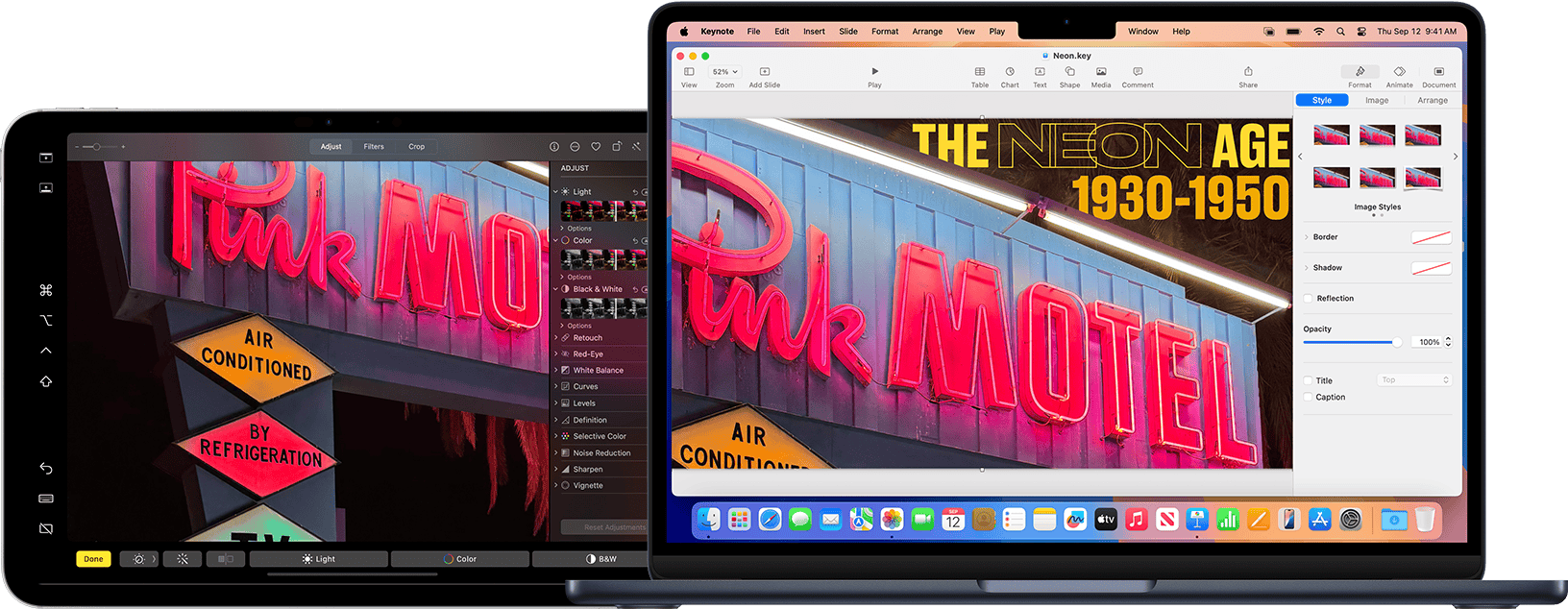
One More Thing: Turn Your iPad Pro into another Screen
Want to squeeze even more real estate out of your M5 Mac setup? There’s a simple way to add an additional display beyond the technical limits of your MacBook Air or Pro: use your iPad as a monitor.
With Sidecar, Apple’s built-in feature, you can wirelessly connect your iPad Pro 13-inch (or any compatible iPad) and use it as a high-resolution extended display. This works seamlessly with all the configurations described above — whether you’re on a MacBook Neo, Air, or Pro.
Why the iPad Pro 13-inch is the perfect second screen:
- Its large, ultra-bright Liquid Retina XDR display is ideal for video editing timelines, coding windows, or design canvases.
- It supports Apple Pencil, turning it into a powerful drawing tablet when paired with creative apps like Photoshop or Procreate.
- Connection is effortless — just open Sidecar from the menu bar and select your iPad.
This means that even if your Mac M5 is limited to two external displays, your iPad becomes a third, giving you unmatched flexibility without a single dongle. For students, creatives, and remote workers, this ecosystem magic is where Apple truly shines.