Can Creative Students Survive with Just a MacBook Neo? The Budget Creator’s Dilemma
You’re a creative student. You’ve chosen a path in graphic design, digital illustration, video production, or music composition. Your lecturers have hinted or flat-out stated, that you’ll need a capable machine. Maybe they even suggested a MacBook Air or Pro with an M5 chip. Then you look at the price tag and your student loan statement, and reality hits hard.
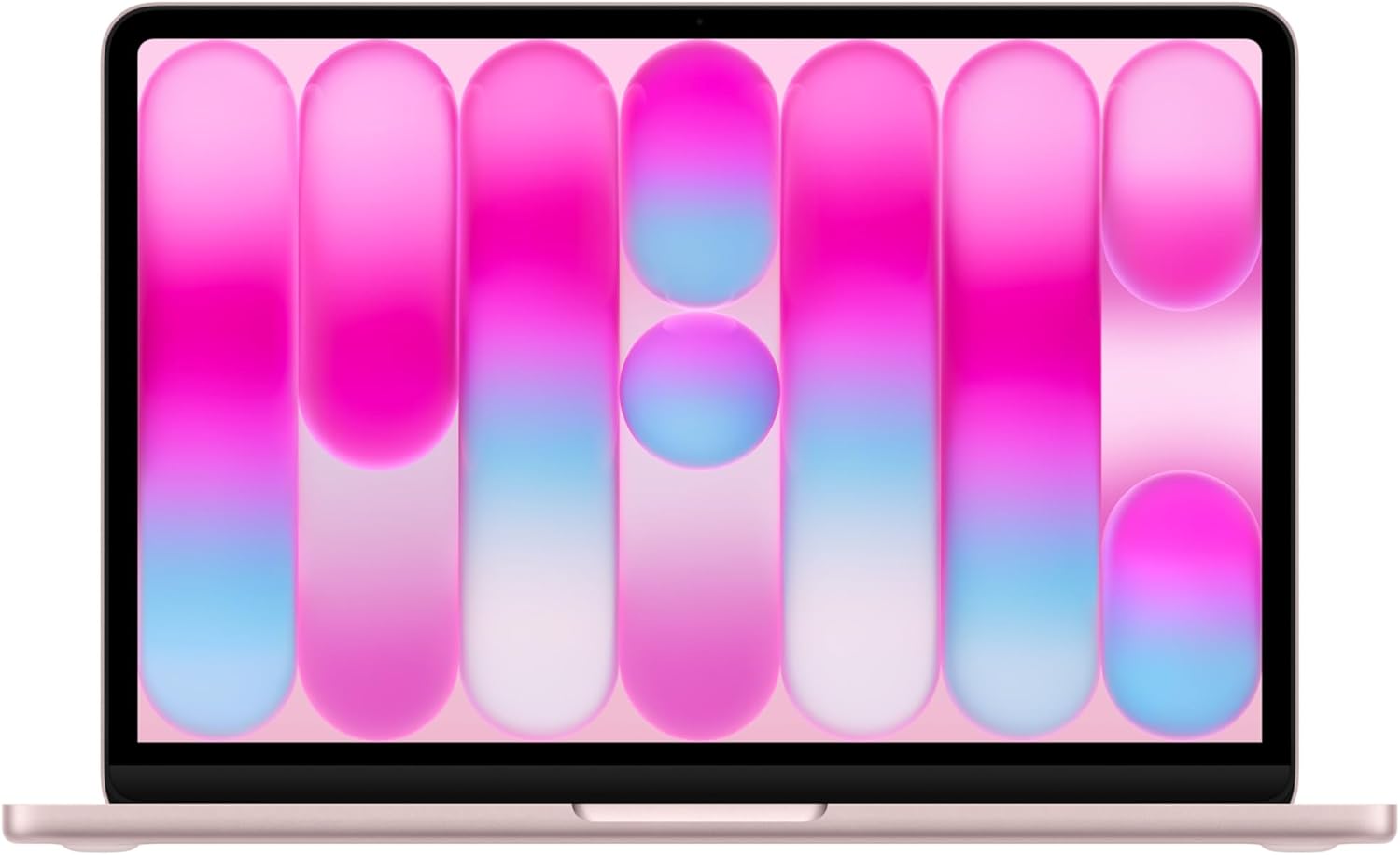
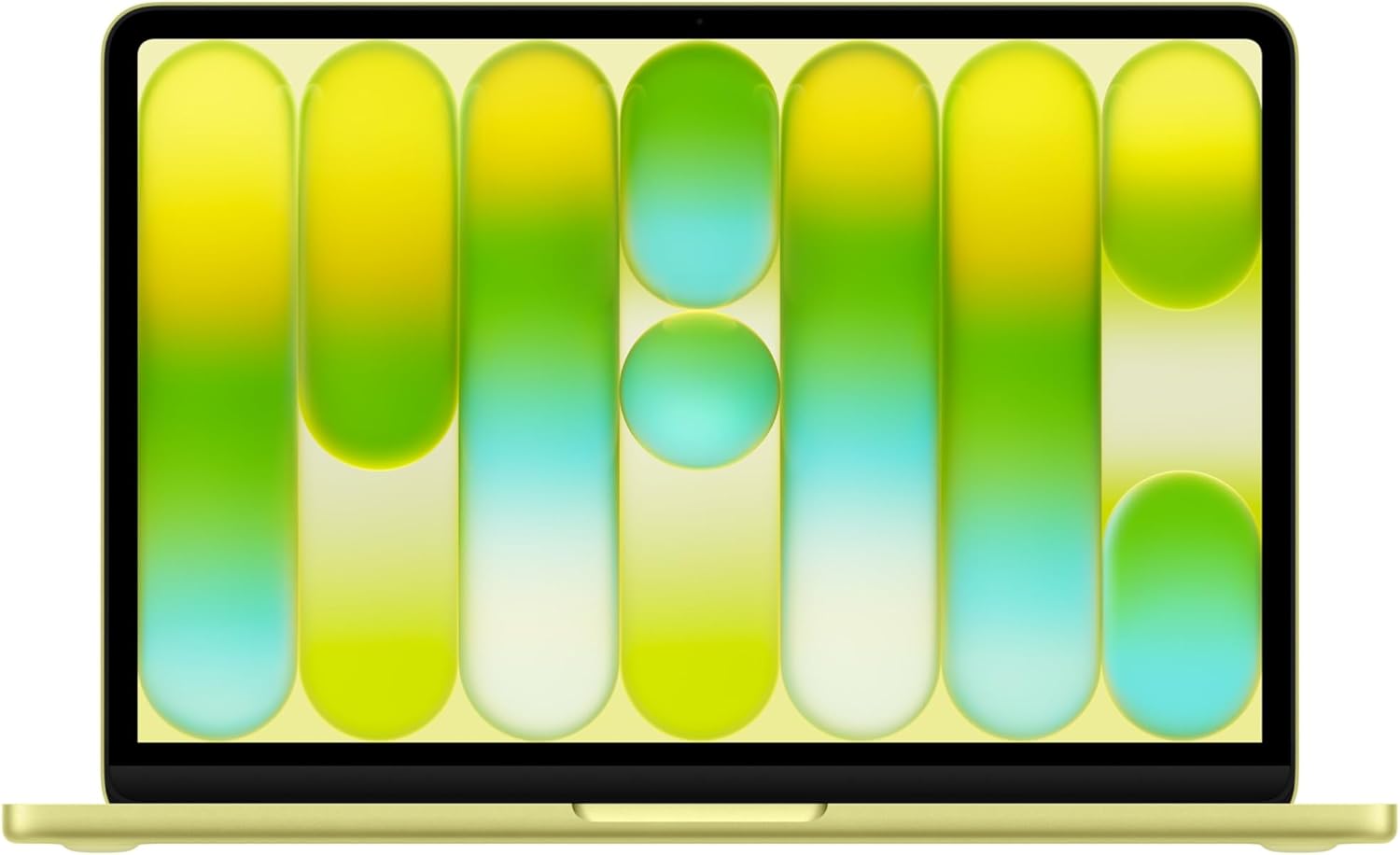
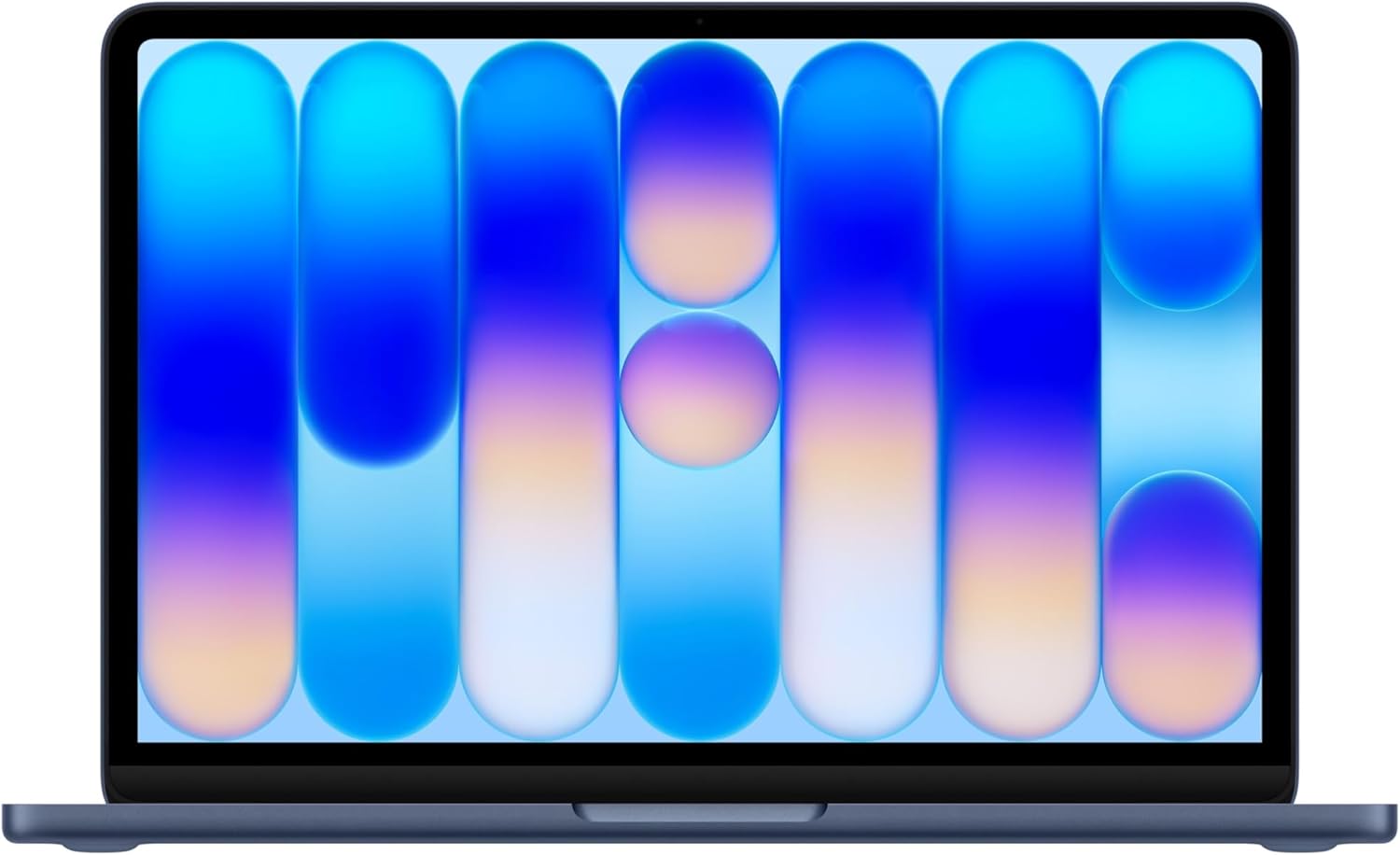
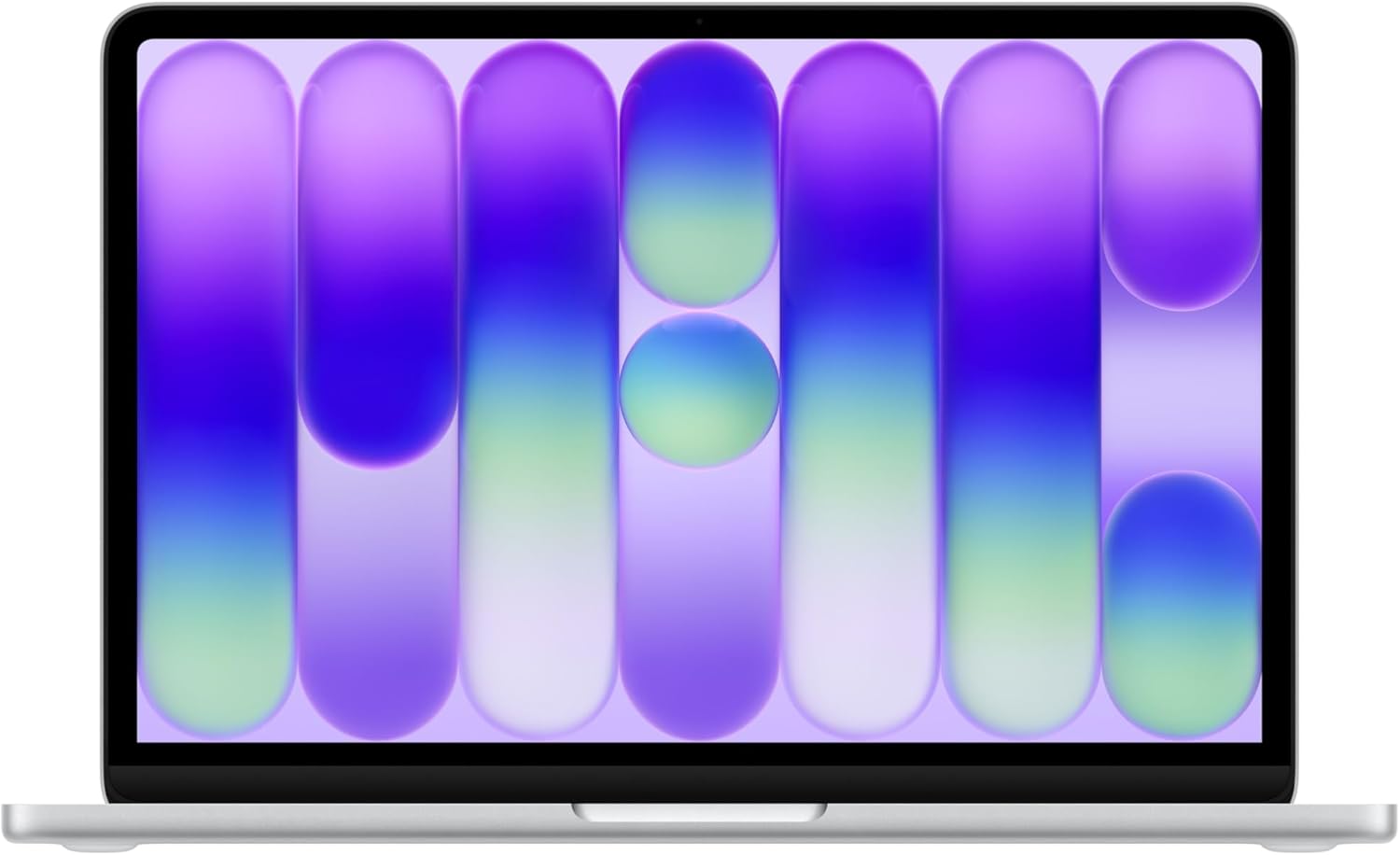
Enter the MacBook Neo: Apple’s most affordable laptop at just £599 (£499 with education discount) . It’s colourful, lightweight, and powered by the same A18 Pro chip found in the iPhone 16 Pro. But here’s the million-dollar question: Can it handle your creative workflow?
The honest answer? Yes—with discipline, smart accessory choices, and realistic expectations. The MacBook Neo won’t replace a maxed-out MacBook Pro for 8K video work or complex 3D rendering. But for the vast majority of creative students, especially those in their first few years of study, it might just be enough. Let’s take a look at what this machine can actually do for photographers, designers, video editors, and musicians on a budget.

What the A18 Pro Actually Brings to Creative Work
First, let’s understand what we’re working with. The A18 Pro isn’t a compromised “budget chip”, it’s the same silicon that powers the iPhone 16 Pro. About 6 months ago, this was the flagship iPhone. Here’s what that means for creatives:
The Silicon Breakdown
| Component | Specification | Creative Relevance |
| CPU | 6-core (2 performance + 4 efficiency) | Handles multitasking, app switching, export times |
| GPU | 5-core with hardware ray tracing | Graphics performance, 3D previews, gaming |
| Neural Engine | 16-core (38 TOPS) | AI photo editing, real-time effects, Apple Intelligence |
| Memory Bandwidth | 60GB/s | Data flow between components |
| Media Engine | ProRes encode/decode, AV1 decode | Video playback and export efficiency |
Real-world performance context: The A18 Pro’s single-core performance rivals the M4 chip, while its multi-core performance sits just under the M1. For a device at this price point, that’s remarkable. Based on Geekbench 6 benchmarks and industry reports, here is the breakdown of how the A18 Pro compares to the M4:
Single-Core Performance Comparison
- A18 Pro: Benchmarks around 3,400–3,500+ in Geekbench 6 single-core tests.
- M4 (iPad/Mac): Benchmarks in the 3,600–3,800+ range.
Verdict: The A18 Pro is extremely close to the M4 in single-core tasks, trailing by only a small margin (roughly 5-10% in some tests), which makes it comparable for tasks like launching apps and UI responsiveness.
While the single-core speed is “rivaling” or “comparable,” the overall capability differs due to architecture and thermal management:
- Multi-Core & GPU Power: The M4 is significantly more powerful in multi-core tasks and GPU-intensive workloads, as it has more cores and higher power limits.
- Architecture: The A18 Pro is designed for power efficiency in a smartphone, while the M4 is designed for high performance in tablets and laptops.
The A18 Pro generally outperforms the M1 and performs very similarly to the M2 in single-core performance but chips with more CPU and GPU cores like M3, M4 and M5 retain a substantial lead in heavy-duty, multi-core and graphics scenarios.
Professional Apps: What Runs Well, What’s a Struggle
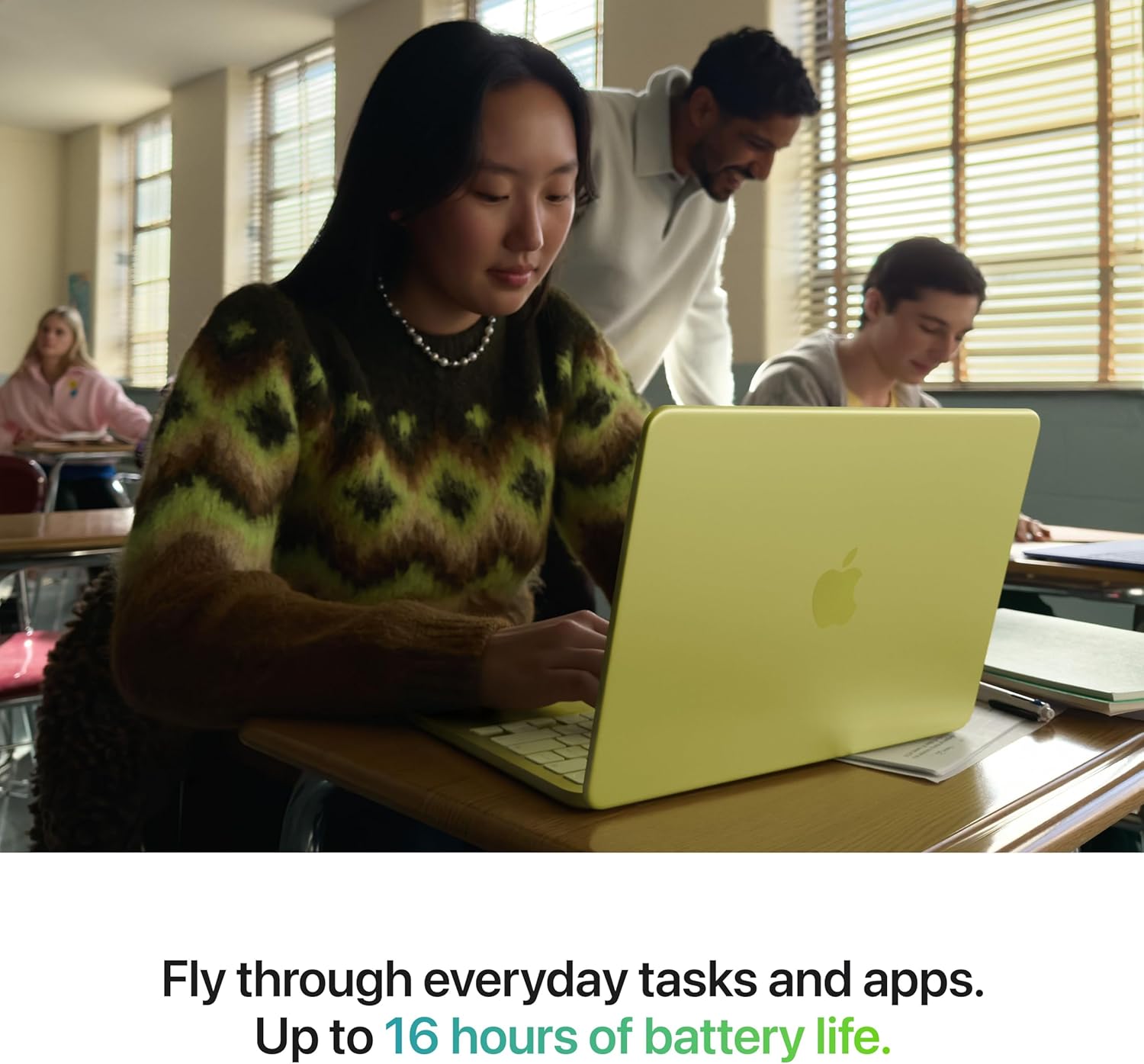
Let’s get practical. Here’s how the MacBook Neo handles specific creative applications:
Graphics & Design
| App | Performance | Notes |
| Pixelmator Pro | ✅ Excellent | Runs “effortlessly” according to hands-on testing |
| Affinity Photo/Designer | ✅ Very Good | Complex layers may cause slowdown with 8GB RAM limit |
| Adobe Photoshop | ⚠️ Good | 8GB RAM means managing layer counts carefully |
| Adobe Illustrator | ⚠️ Good | Vector work is fine; complex effects may lag |
| Figma | ✅ Excellent | Browser-based; runs perfectly |
| Canva | ✅ Excellent | No issues whatsoever |
Video Editing
| App | Performance | Notes |
| DaVinci Resolve | ⚠️ Moderate | 1080p projects work well; 4K requires proxy workflows |
| Final Cut Pro | ⚠️ Moderate | “4K video editing could be a bit challenging” |
| iMovie | ✅ Very Good | Perfect for student projects |
| CapCut | ✅ Good | Handles short-form content easily |
| Premiere Rush | ⚠️ Moderate | Keep timelines simple |
Audio Production
| App | Performance | Notes |
| Logic Pro | ✅ Very Good | Audio processing is CPU-light; runs well |
| GarageBand | ✅ Excellent | Built-in and optimized |
| Ableton Live | ⚠️ Good | Multiple tracks + plugins may push limits |
| Audacity | ✅ Excellent | No issues |
3D & Motion
| App | Performance | Notes |
| Blender | ⚠️ Limited | Simple modeling possible; rendering will be slow |
| Spline | ⚠️ Moderate | Browser-based 3D works with simple scenes |
| Procreate Dreams | ❌ Not available | iPad-only |
The bottom line: For 2D design, photo editing, audio production, and 1080p or (4K at a push) video work, the Neo is genuinely capable. For 4K and above video, complex 3D, or heavy motion graphics, you’ll need patience and smart workflows.
The 8GB RAM Reality Check
Let’s address the elephant in the room: 8GB unified memory is the only option. For creative work, this is the most significant limitation. Here is how to get around it for day-to-day tasks of a creator.
You can run:
- One creative app at a time + Safari + Messages
- Light multitasking between design tools
You’ll struggle with:
- Photoshop + Illustrator + Chrome with 20 tabs simultaneously
- Large 4K timelines with multiple effects
- Complex 3D scenes
The creative student’s discipline checklist:
- Close apps you’re not using
- Keep browser tabs under control
- Use activity monitor to spot memory hogs
- Consider proxy workflows for video
- Save and restart occasionally
This of it as being laser focused with your work, brushing distractions aside. Just like working on an app in a tablet to edit your photos or cutting your videos, there are no multiple windows and apps hanging around unnecessarily gobbling up memory.

How to Turn Your Neo into a Creator’s Powerhouse: Essential Accessories
1. External Storage (Non-Negotiable)
With only 256GB or 512GB internal storage, creative files will fill up fast.
Recommendation: A 1TB or 2TB portable SSD (Samsung T7, SanDisk Extreme, or similar). Look for USB 3.2 Gen 2 speeds to match the Neo’s USB 3 port (up to 10Gb/s) .
Why: Keep active projects internally, archive completed work and raw footage externally.
2. External Display
The Neo supports one external 4K display at 60Hz . For creative work, this is transformative.
Recommendation: A 27-inch 4K monitor (LG UltraFine, Dell UltraSharp, or similar). The extra screen real estate for palettes, timelines, and reference images is worth every penny.
Workflow boost: Edit on the big screen, keep tools and preview on the Neo’s display.
3. USB-C Hub/Dongle
With only two USB-C ports (one USB 3, one USB 2) , you’ll need expansion. Essential ports to add:
- SD card reader (for camera transfers)
- HDMI (for external displays)
- Additional USB-A for older peripherals
- Pass-through charging
Recommendation: Anker USB-C Hub, Satechi USB-C Hub, or CalDigit USB-C hubs.
4. External Mouse (Optional but Recommended)
The Multi-Touch trackpad is excellent , but for hours in Photoshop or Premiere, many creatives prefer a mouse.
Recommendation: Logitech MX Master 4 or Apple Magic Mouse (Search on Amazon)
5. Drawing Tablet
If you need proper pressure sensitivity for illustration, consider:
- Wacom Intuos (entry-level Small or Medium)
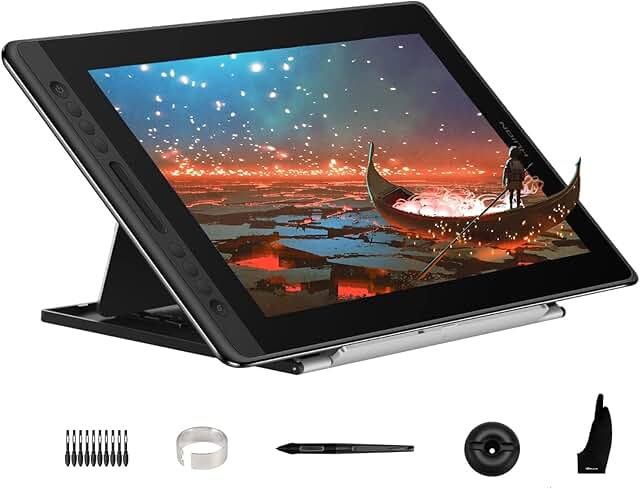
- XP-Pen Artist or Huion Kamvas tablets (budget alternatives) with screen image below.
- iPad Sidecar (if you already own an iPad) if not read the next section and consider one.
The Game-Changer: Pairing with an iPad (and Apple Pencil)
For students who can stretch their budget slightly, or who already own an iPad, this combination offers the absolute best of both worlds. Here’s why separating your tools can be surprisingly effective:
| Device | Primary Role | Creative Superpower |
| MacBook Neo | Heavy lifting, typing, research | Runs full creative apps, external displays, file management |
| iPad + Pencil | Sketching, ideation, mobile creativity | Apple Pencil precision, portability, touch-first apps |
Why This Combo Works So Well
A. Seamless Ecosystem Integration
Apple’s Continuity features mean these two devices work as one:
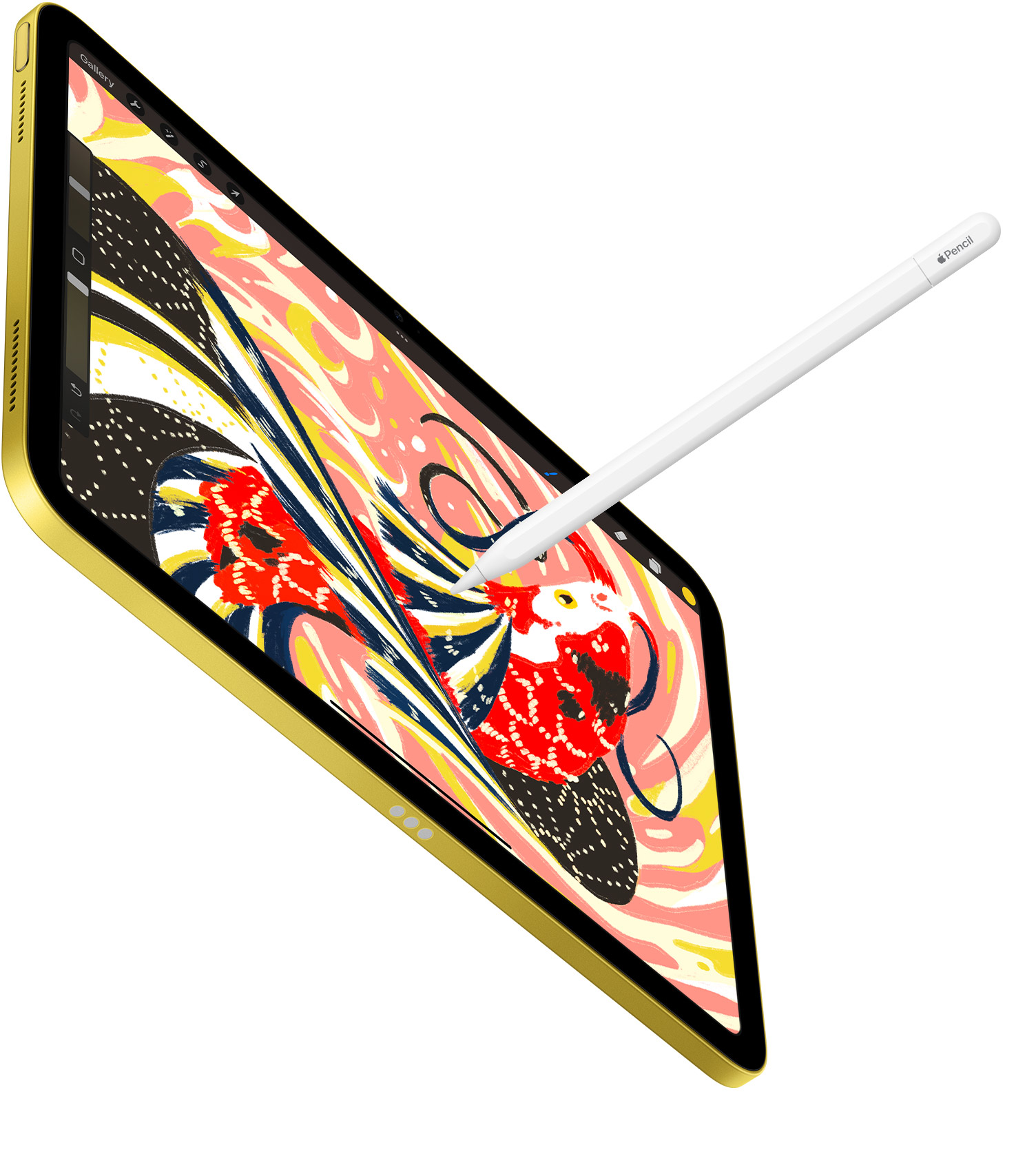
Sidecar: Use your iPad as a wireless or wired second display for your Mac. Keep your tools on the Neo and draw directly on the iPad screen with Apple Pencil; full pressure sensitivity, palm rejection, zero lag. It’s like having a professional drawing tablet, but your iPad is also a standalone device.
Universal Clipboard: Copy an image or text on your iPad, paste it instantly on your Mac.
Handoff: Start sketching in Procreate on your iPad, then continue refining in Photoshop on your Mac.
AirDrop: Move photos, designs, and project files wirelessly in seconds.
B. The Right Tool for the Right Task
On the iPad: Sketch concepts during a lecture, illustrate in Procreate, annotate PDFs, scan whiteboard diagrams with the excellent 12MP camera .
On the MacBook Neo: Build those sketches into polished designs in Affinity Designer, write your artist’s statement, research references, and manage files.
C. Procreate (and iPadOS) Exclusives
Some of the best creative apps are iPad-only. Procreate is the obvious example, a £10 one-time purchase that’s arguably the best digital illustration app on any platform. With the Neo + iPad combo, you don’t miss out.
D. Redundancy and Portability
Your iPad alone is perfect for the coffee shop, the library, or the studio session where a laptop feels like overkill. Your MacBook Neo handles the heavy lifting at your desk. If one device dies or needs repair, you’re not left without a creative tool.
What You’re Giving Up (The Honest Trade-offs)
Let’s be real about what the Neo doesn’t offer:
| Feature | Neo Reality | Pro/Air Advantage |
| RAM | 8GB fixed | 16GB+ on higher-end Macs |
| Storage | 256/512GB | Up to 4TB on MacBook Pro |
| Ports | 2 USB-C (one slow) | Thunderbolt 4/5, HDMI, SD slot |
| Keyboard | No backlight (base model) | Backlit standard |
| Touch ID | Only on 512GB model | Standard on most Macs |
| Display Quality | sRGB only | P3 wide colour on Air/Pro |
| External Displays | One 4K display | Multiple high-res displays |
| GPU Power | 5-core A18 Pro | Up to 40-core on M5 Max |
| Future AI Features | Full Apple Intelligence | Full support on newer M-series |
For creative students, the P3 colour gamut on MacBook Air/Pro displays is a genuine consideration. If colour-accurate work for print or client presentation is critical, factor in an external monitor with good colour coverage.
The Verdict: Can Creative Students Survive?
Yes—with honest expectations and smart workflows.
The MacBook Neo is not the ultimate creative machine. It won’t replace a MacBook Pro for intensive 4K/8K video work, complex 3D rendering, or professional colour grading. But here’s the thing: most creative students don’t need that power in their first years of study.
What you need is:
- A reliable machine for learning software fundamentals
- Enough performance to complete coursework
- Portability for moving between lectures, libraries, and studios
- A price that doesn’t require a second student loan
The Neo delivers all of that. The A18 Pro chip is genuinely powerful , the build quality is excellent, and at £499 with education pricing, the value proposition is unmatched.
The Creative Student’s Neo Checklist
Choose MacBook Neo if:
- You’re in years 1-2 of a creative degree
- Your work is primarily 2D design, photo editing, or audio production
- You’re willing to use smart workflows (external storage, proxy media)
- You can supplement with accessories over time
- Budget is your primary constraint
Consider alternatives (refurbished M2/M3 Air or Pro) if:
- You’re already doing 4K video work professionally
- Colour-accurate display is critical and you can’t afford an external monitor
- You regularly work with massive files and need 16GB+ RAM
- 3D modelling and rendering is your focus
Final Thought: Discipline Beats Hardware
Here’s the secret that experienced creatives know: your skills matter more than your tools. A disciplined student with a MacBook Neo, external storage, and smart workflows will produce better work than an undisciplined student with a maxed-out MacBook Pro who never closes apps, fills their drive, and wonders why everything crashes.
The Neo asks you to be intentional about your creative process. And honestly? That’s not a bad thing to learn early.
The MacBook Neo won’t limit your creativity, your creativity will limit the MacBook Neo. Push it, and you might be surprised what this “budget” laptop can actually do.
For the dedicated creative student, the Neo + iPad combo is genuinely transformative. You’re not compromising—you’re building a professional-grade workflow that mirrors how many working designers and artists actually operate. The Neo handles the heavy lifting; the iPad handles the human touch.