How to transfer your Android Contacts to Your iPhone
Given the competitiveness of the smartphone market, the likelihood of users changing or upgrading their phones is very high, even assured. If you are moving from an old Android to a new Android phone or an old iPhone to a new iPhone is generally straight-forward and simple.
Android users have the benefit of syncing their account on all Android devices easily. The Auto-sync function allow users to add their Gmail or Google Apps account and the devices will automatically be configured to synchronise. These include Google Currents (news feed), Google Drive, Google Play Books, Gmail, Calendar, Picasa Web Albums and most importantly Contacts.
iPhone users have the iCloud which allows them to sync Mail, Calendars, Reminders, Safari, Notes, Passbook, Photo Stream, Documents and App Data and ultimately their Contacts with all their iOS devices. To move to a new device on the same platform, they simply sign in with their Apple ID and add their mailbox(es) or on Android device, add and manage their accounts that way.
However, if you move from an Android to an iPhone or the other way round (yes, these possibilities does exist!), it becomes a bit more challenging.
Here we look at how to transfer contacts between the two main mobile phone platforms in the market, Android and iOS.
To transfer your contacts from an Android device to the iPhone without the use of a PC, follow the steps on How to Backup your Android’s Contact then use the following steps below:
To transfer your contacts from Android to iPhone
1. On your iPhone, go to Mail and download the email with the .vcf attachment generated and sent from the Android device using the Steps in How to Backup your Android’s Contact.
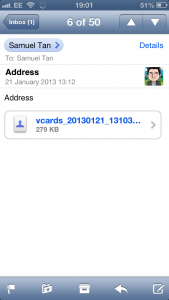
2. Click on the vcards attachment in your email as seen above.
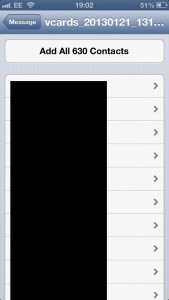
3. The content of the file or vcards will be listed.
Click on the button at the top that says ‘Add All… Contacts‘ to download all contacts to your iPhone and Voila! You now have a completed Contacts book and as seen from this example, the iPhone imported 630 contacts.
To transfer your contacts from iPhone to Android
Transferring your contacts from iPhone to Android is slightly more complicated and will involved the desktop. There are quite a number of tutorials and posts on online forums that show you how to transfer your contacts from iPhone to Android.
In my personal experience, due to deep integration of Google Mail on Google’s Android devices, it’s easier to start by signing up for a Google Mail account. Even if you are not going to use the mailbox, simply creating the account and adding this on your new Android device alongside your other email account(s) allows you to import and synchronise your contacts to your Android phone.
Now, down to the business of exporting your contact from your iPhone. You will need to have iTunes installed on your desktop. Connect your iPhone to your desktop and go to the Info tab. On the Info tab, set your Contacts synchronising option to Sync Contacts with… Google Contacts. Then complete complete the sign up with your Google mail account. That’s all you need to push your Contacts from your iPhone to Google via iTunes. UPDATE: New version of iTunes (11.0.1) on MAC restricts Contact synchronisation to devices only e.g. between iPad and iPhone and MAC laptop over the iCloud.
To check if the Contacts has been synchronised with Google Contacts, check online by logging on to Google Mail online. You will immediately notice that your number of contacts has increased. If you are an existing Gmail user, go through your Contacts list to find and remove any duplicates.
Finally, go back to your new Android phone and add your Gmail account. Ensure that you have set the Gmail synchronisation option to sync Contacts, which is selected by default, you will get your Contacts populated automatically.
That’s it. If you know of other easier ways to transfer your contacts between iPhone and Android devices, please do share them here.
Author: Samuel J. Tan
To make sure you continue to receive interesting exciting articles at the forefront of learning with technology, remember subscribe to our updates below and follow @ColorMyLearning on Twitter and Like us on Facebook.
Don’t forget to Rate This Article










January 26, 2013 @ 12:23 pm
You can also Sync your iOS device with Google Contacts using CardDAV with the steps below:
Here’s how to sync your contacts to your device:
Open the Settings application on your device.
1. Select Mail, Contacts, Calendars.
2. Select Add Account…
3. Select Other
4. Select Add CardDAV Account
5. Fill out your account information in the following fields:
Server: Enter “google.com”
User Name: Enter your full Google Account or Google Apps email address.
Password: Your Google Account or Google Apps password. (If you’ve enabled 2 Step verification, you’ll need to generate and enter an application specific password.)
Description: Enter a description of the account (e.g. Personal Contacts).
6. Select Next at the top of your screen.
Make sure that the “Contacts” option is turned to ON.
May 9, 2013 @ 10:37 am
Great Article. Thank you Samuel. For messages transferring, I use Backuptrans Android SMS to iPhone Transfer. Hope this can help other users.
May 11, 2013 @ 1:27 pm
Thank you for sharing. It’s certainly worth looking into.
July 15, 2013 @ 5:49 am
If you’d like to move photos from android to iphone, you may check out this step-by-step guide http://www.android-to-iphone.com/phototransfer/transfer-photos-android-iphone/
it works excellent for me
July 30, 2013 @ 7:05 am
This was SO helpful! Thank you!
July 30, 2013 @ 8:59 pm
Thank you Anna for the comment you left us.
October 8, 2013 @ 8:32 pm
Thank you so much for adding this! I was actual
ly on the phone with a Sprint Tech Support person, but told him I’d found instructions and to just hang with me in case they didn’t work…..amazingly, this 54 year old non-tech cell phone lady did it on my own successfully! YAHHHHHH
February 3, 2014 @ 1:45 pm
While this might not be the best method, I have found it best served what I needed when transferring my Android HTC contacts to my iphone 5:
http://www.macvideoeditor.com/phone-transfer/
First, I don’t have a Gmail account, and even if I had, I would not wish to mix my email addresses with my iphone address book by syncing Gmail with my iphone address book. As a result, I used the above method in order to manually export my Android HTC contacts to my computer and in turn import them to my iphone 5.