How to Backup your Android's Contact
Not that you need to backup your Android’s Contact book as this is Sync-ed with Google’s cloud but if you ever need to have a copy of all your contacts from your smartphone or tablet on a different platform or application, here is how to backup your Android’s Contact without having to connect to a PC.
5 Easy Steps to Backup Your Android’s Contact Without Using a PC
To export a copy of your Google Android’s Contact be it on your smartphone or tablet, You will first need be in Contact.
1. Click on Contacts from your home screen, You will see the screen below, click on the ‘Settings‘ button (this is usually a hardware or virtual button, please refer to your device) to bring up the Contacts settings menu.
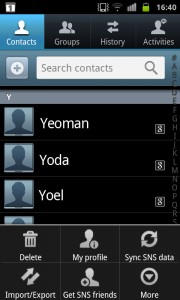
2. From the slide up menu at the bottom click the Import/Export button
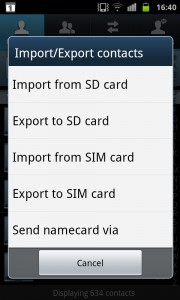
3. From the list pop up menu choose “Send namecard via”
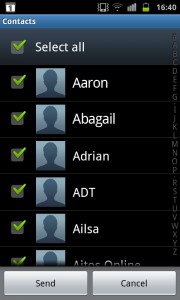
4. Next click ‘Select all‘ to tick all contacts for export then click the Send button
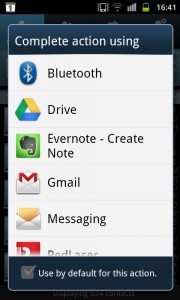
5. Choose the Gmail option to complete the export action.
The contacts will be exported into a .vcf file and attached into an email ready to send.
Simply complete the email with a recipient’s address (this can be your own email address), subject and body and click the Send button.
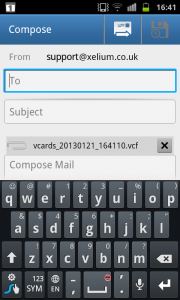
To download a copy of the .vcf file, log on to your target device, check and download your email there. You can them choose to import this into any application that accepts vCard (or .vcf) file format. vCard is an electronic business card format commonly accepted and compatible with most Contact books and Email client application be it on PC or MAC.
Author: Samuel J. Tan
To make sure you continue to receive interesting exciting articles at the forefront of learning with technology, remember subscribe to our updates below and follow @ColorMyLearning on Twitter and Like us on Facebook.
Don’t forget to Rate This Article











How to transfer your Android Contacts to Your iPhone | Colour My Learning
January 26, 2013 @ 10:02 am
[…] your contacts from an Android device to the iPhone without the use of a PC, follow the steps on How to Backup your Android’s Contact then use the following steps […]
January 30, 2013 @ 12:48 pm
Or you can use an app to backup not just the contacts but everything on the device. There is so many options but by far G Cloud backup is the best it does not require rooting.
February 25, 2015 @ 12:19 pm
I spent two hours trying lots of different ways to do this and then I found your guide!! It worked in two minutes, amazing!! Thank you!
February 26, 2015 @ 12:27 pm
Thanks Amanda, we are glad it worked for you.