How to resize by pixels in Photoshop Elements
I get asked this question all the time and I know the solution is a simple one but it still throws me off sometimes, trying to find the answer in the ‘Preferences’ options or looking at options to change the size of the canvas instead. So, “How to resize an image by pixels in Photoshop Elements?” and “How do I resize an image by pixels instead of by inches?”
Photoshop Elements, the cut-down version of Photoshop, or what I prefer to call, a user oriented version is every bit as powerful as it’s big brother if not more. On first operating the application, users will be stumped by the option to only resize image by inches or centimeters.
To answer the questions of how to resize an image by pixels go through the same menu route Image > Resize > Image Size…
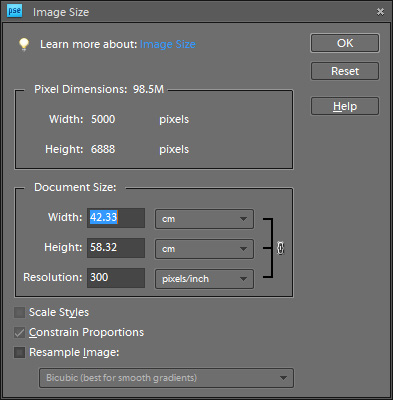
From the Image Size window, turn on Resample Image by ticking the check box
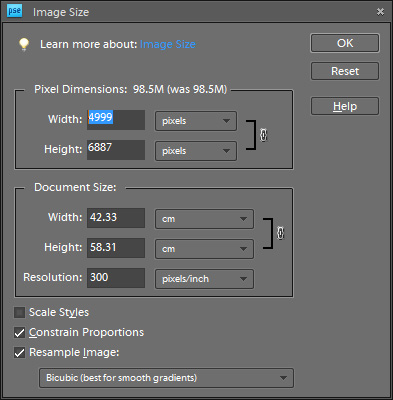
The option for setting the Width and Height by pixels will be enabled.
You can now change the image size by pixels.
The steps shown here are applicable to all versions of Photoshop Elements or at least from version 8 onward. We hope this is helpful to you as it is to us for when we are asked the questions again.
Author: Samuel J. Tan
To make sure you continue to receive interesting exciting articles at the forefront of learning with technology, remember subscribe to our updates and follow @ColorMyLearning on Twitter and Like us on Facebook.
You will benefit from a newsletter updates straight to your mailbox from ColourMyLearning on the use of Technology for Teaching and Learning.
Don’t forget to rate this article








December 23, 2012 @ 3:49 pm
This seems very helpful. Thanks.
July 28, 2015 @ 6:52 pm
Thank you so much. This solution isn’t full tech talk that I don’t understand, so for the first time in years I’ve been able to use Photoshop Elements to resize a picture. Thank goodness, because Paint won’t open anymore.